
CFWYI FVPSA Application Instructions (PDF)
Steps for making your NCID
Each person who applies for EBS access must have a NCID.
- You need to have an individual NCID. Go to this link: Identity Manager Dashboard (nc.gov)
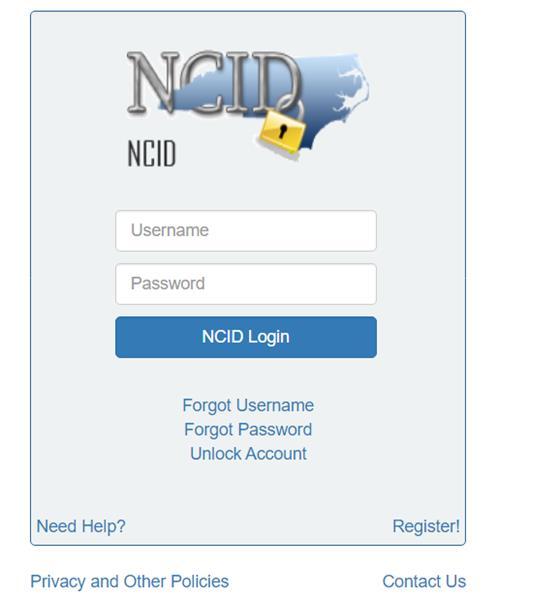
- Click on Register! At the bottom right of the box.
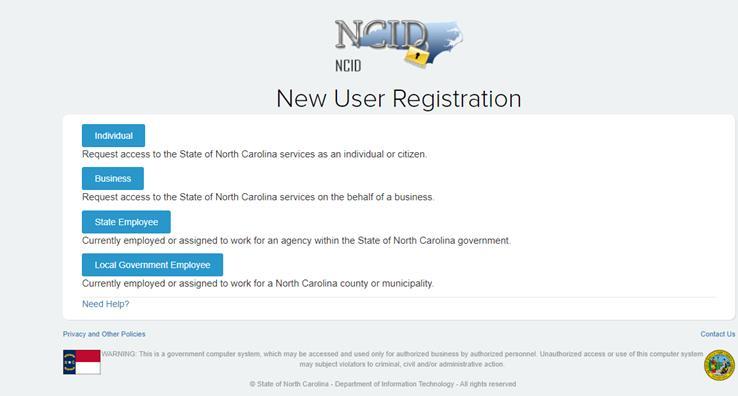
- Click on Individual
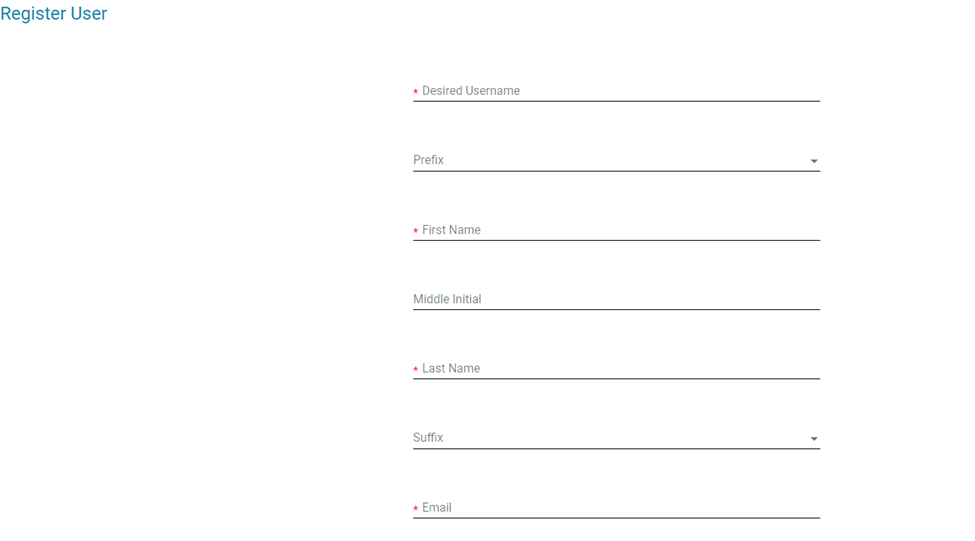
- The Desired Username will be your NCID. You make this up. Write it down somewhere. And write your password down. And make sure you remember the email address you used to make your NCID.
- After you have your NCID, click on this link EBS_EXTERNAL_AR_APP (nc.gov)
This is the application to request access to the EBS system.
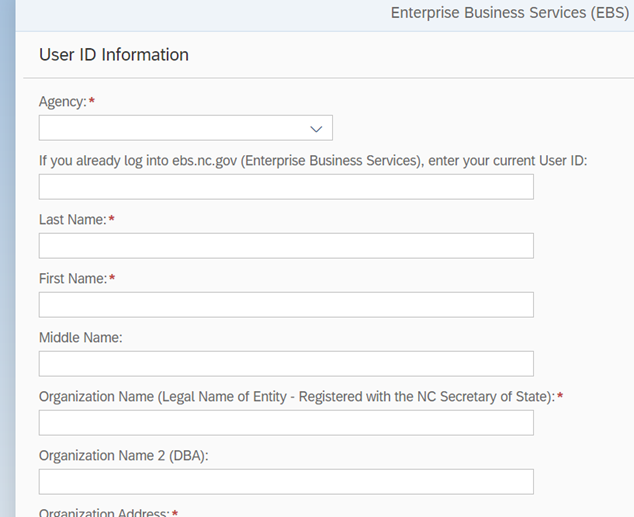
The agency is a drop-down menu. You are going to choose DOA - Council for Women & Youth Inv.
You also need to know the legal name of your agency and the tax id.
After you complete and submit this form, I will receive an email. I will then double check your tax id and forward your application to the next level which no one in CFWYI is involved in – it’s DIT. At that second level, your NCID is checked. If you filled that information out correctly, you will receive a welcome email with an explanation about how to access the Grants Management System. If something about your NCID was not correct, but you and I will receive an email explaining next steps. And we will work together to get the corrections made.
Grantee Profile
You only need to complete one profile per agency, regardless of the number and type of grants for which you are applying or have been awarded.
To create your profile, click on the “Grantee Profile” tile:
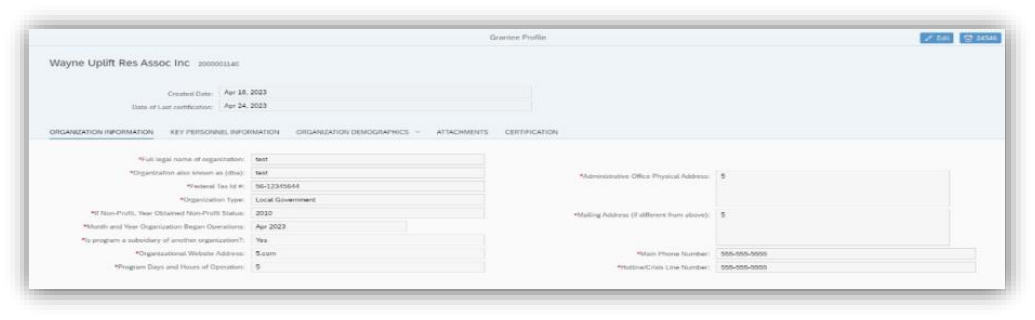
- Organization Information: This section requests basic information about your organization.
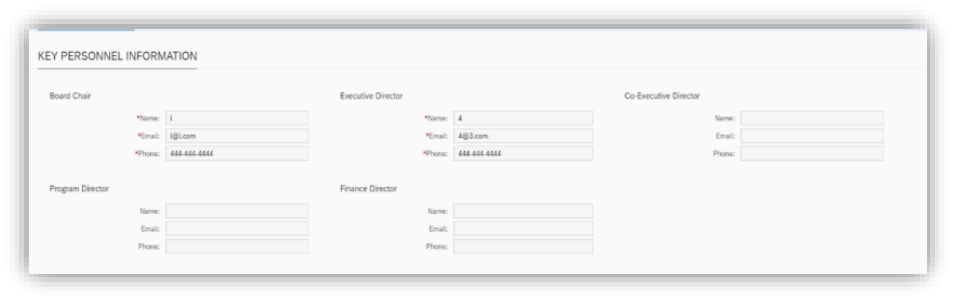
- Key Personnel Information: Please make sure the names and contact information you enter in this section are correct because we will ultimately use them to create and execute contracts for organizations deemed eligible.
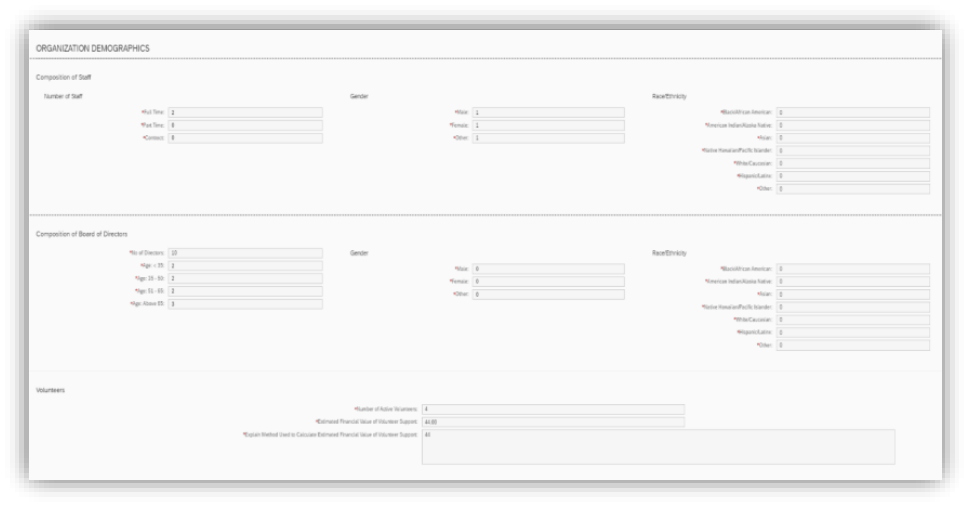
- Organization Demographics: This section asks for some basic aggregate data about your staff and board.
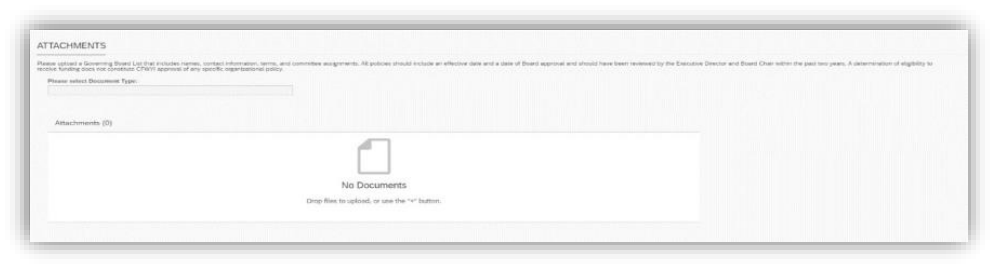
- Attachments: This is the place for you to upload your required organizational documents and policies, including your board list, strategic plan, sustainability plan, conflict of interest policy, confidentiality policy, non-discrimination policy, organizational code of conduct, internal controls policy, recordkeeping policy, whistleblower policy, and confirmation of 501(c)(3) status.
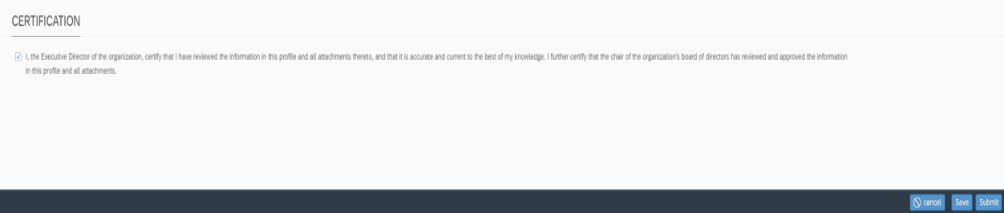
- Certification: This is where you will certify that all profile information is accurate and current, which you will be asked to do on an annual basis. Once you hit “submit,” the system will enter the current date as the “Date of Last Certification” at the top of the screen.
Subgrantee Supplemental Applications
Once you have created your Grantee Profile, it will be time to create and submit an “Application with Actual Budget” for the federal award you have received.
To create an Application with Actual Budget:
- Click on the “Application with Actual Budget” tile and then “Create Actual Budget.”
- You will then select the applicable program (in red below) for the application.
- 24-25Domestic Violence Grants
- 24-25 Sexual Assault Grants
- 24-25 Stand Alone SA Grants
- FFY 24-25 PREVENTION (if you’re applying for Supportive Services and Prevention program)
- FFY 24-25 SHELTER (if you’re applying for Supportive Services and Immediate Shelter program)
Formatted: Normal
- Complete “Part A. Eligibility Application”. You MUST enter the budget amount as reflected in your award letter. Please also include the match.

- Scroll down to the Supporting Documents section at the bottom of the screen, and upload your completed FY23-24 Supplemental Application Form for the program listed in the “Program Description” field and the county selected in the “County”. Click “Submit.”
