
Facilities 00 DOA FMD NCID User Registration Guide (PDF)
NCID User Registration Guide
Introduction
The North Carolina Department of Administration Facility Management Division is implementing a new system in November 2020. The Facility Management System has two (2) different application modules; AiM and ReADY. The ReADY module allows building coordinators to submit request for services to the Facilities Management team for processing. The AiM module allows the business to manage work requests. The AiM module includes the Go Field Service Apps. The primary users of the Facility Management system, AiM and ReADY, will be the DOA Facility Management Staff which is mainly state employees with a few contractors.
The users for the Facility Management system, AiM and ReADY, will be authenticated through the State's North Carolina Identity Management Service – Next Generation (NCID). This is the standard identity and access management platform provided by the NC Department of Information Technology. NCID is a Web-based application that provides a secure environment for state agency, local government, business and individual users to log in and gain access to real-time resources, such as the DOA Facility Management applications.
About this Guide
This guide is designed as a reference for business users who will use the DOA Facility Management Division AssetWorks System and will require a NCID for access. This guide has been created leveraging content from the DIT NCID NG User Guide version 1.9. and only addresses Self-Registering for an Account. For the most current version of the complete NCID User Guide please visit the NCID Training and Documentation web page at: https://www.ncid.its.state.nc.us/TrainingAndDocumentation.asp
Special Notes
The screenshots provided in this guide are for informational purposes. Screen content and feature availability may vary based on individual environments and access permissions.
The AssetWorks (AW) system supports four (4) major browsers, Safari, Edge, Firefox and Chrome. AW does not support IE.
Documentation Updates
| DOA FMD Document management | Date | Version |
|---|---|---|
| Initial Version for DOA FMD | 10.23.2020 | 0.1 |
Self-registering for an account if you do not have a NCID
Each person who creates an NCID must have a valid email address. If a person does not have a valid email address, please create one before moving forward.
In a web browser, such as Microsoft Edge go to the North Carolina Identity Management(NCID) website at https://ncid.nc.gov.
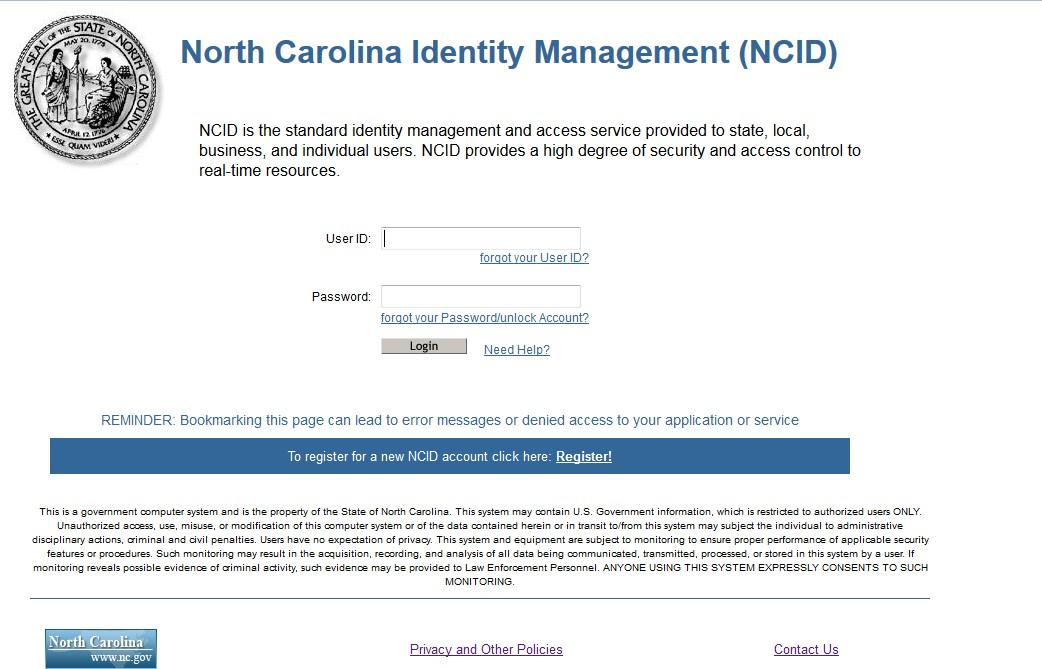
The "North Carolina Identity Management (NCID) Login" screen is displayed.
At the bottom of the log in page, find the word "Register!" and click the link.
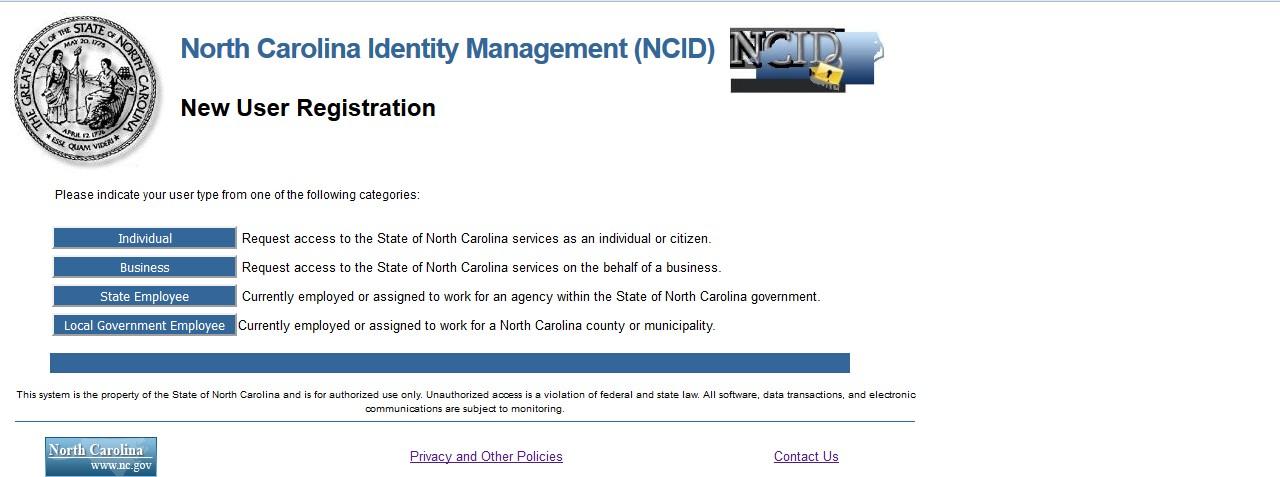
The "NCID Registration" screen is displayed. Click on the "Business" from the category list
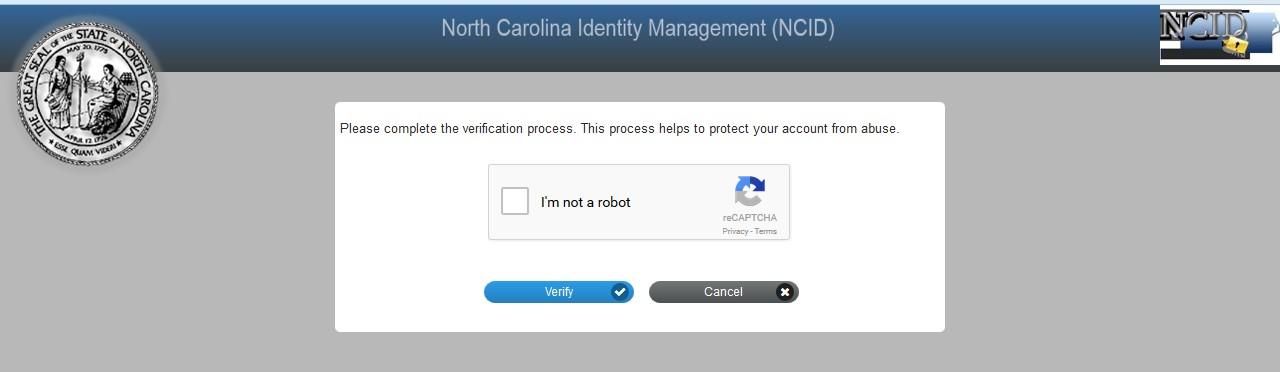
Verify using reCAPTCHA
The registration form for the account type you selected on the previous screen is displayed. The following figure illustrates an example of a "Business Account" registration screen. Complete the required information, indicated by the asterisk, and then select "Continue."
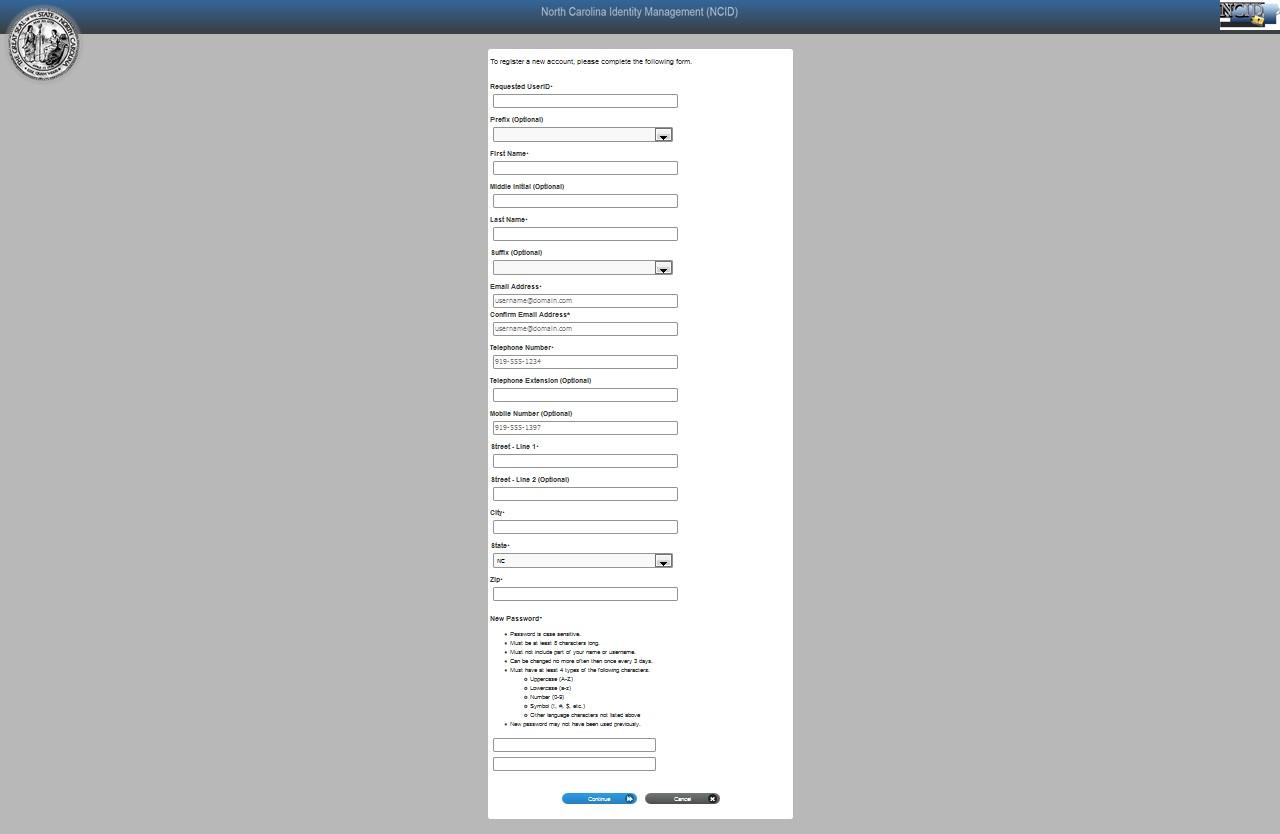
Please follow guidelines for password criteria.
Note: If a requested User ID is already in use, please create a different one. A User ID and password should be something a person can easily remember. The password must meet the criteria as provided under New Password.
Click Continue
NCID policy requires that you set up challenge questions and responses. The questions and your responses are used to verify your identity when you need to manage your NCID password.
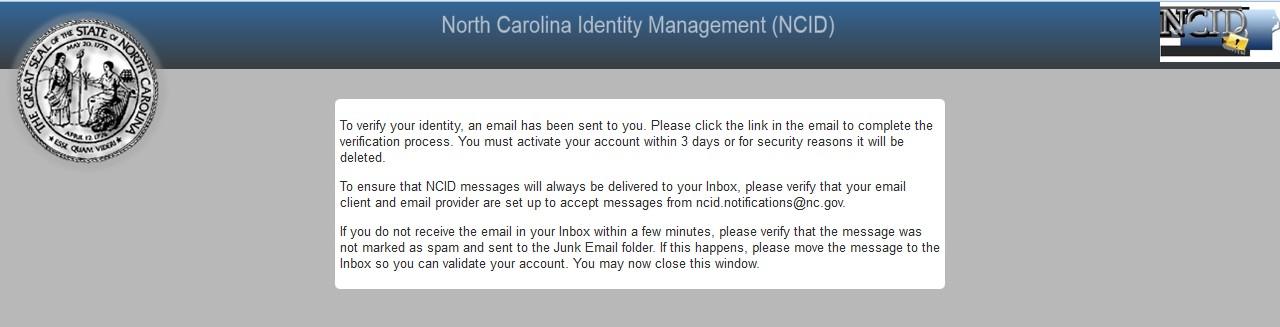
Account Successfully Created Message
The following figure provides an example of the email. The message informs you that an account request was created, and it is associated to the email address you provided during registration. It indicates that the account was requested by you, and shows your user ID. You will need to click on the URL to validate the account in NCID. The account will be deleted if you do not validate it within 3 days.

Account Creation Email Notification
Upon clicking on the URL, another message is displayed and states that your account has been created. You will also receive an email indicating the date and time that your account was confirmed.
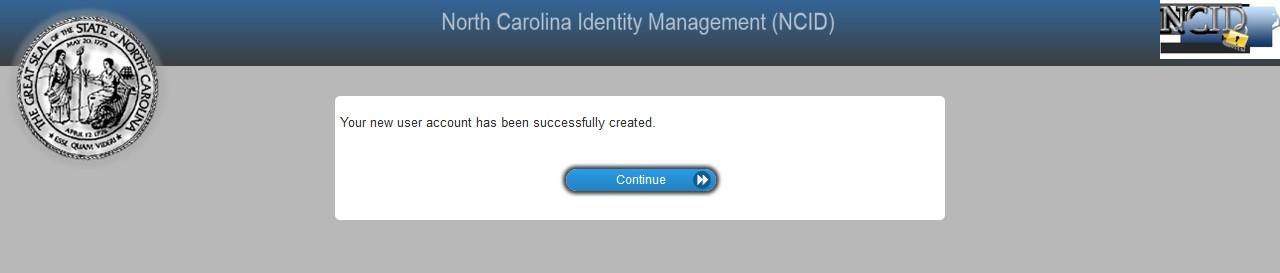
Account Successfully Enabled Message
The "Self-Service Challenge Responses" section prompts you to set up five (5) challenge questions. These questions will be asked if you need to reset your password or unlock your account. Select a question from each dropdown menu and enter an answer in the field next to the question.
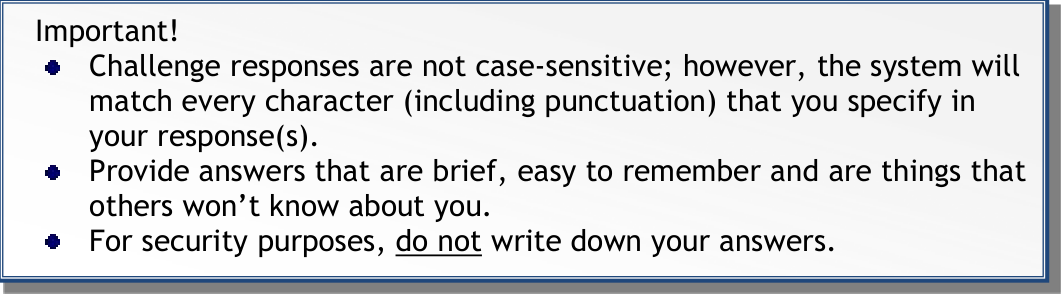
Important!
- Challenge responses are not case-sensitive; however, the system will match every character (including punctuation) that you specify in your response(s).
- Provide answers that are brief, easy to remember and are things that others won't know about you.
- For security purposes, do not write down your answers.
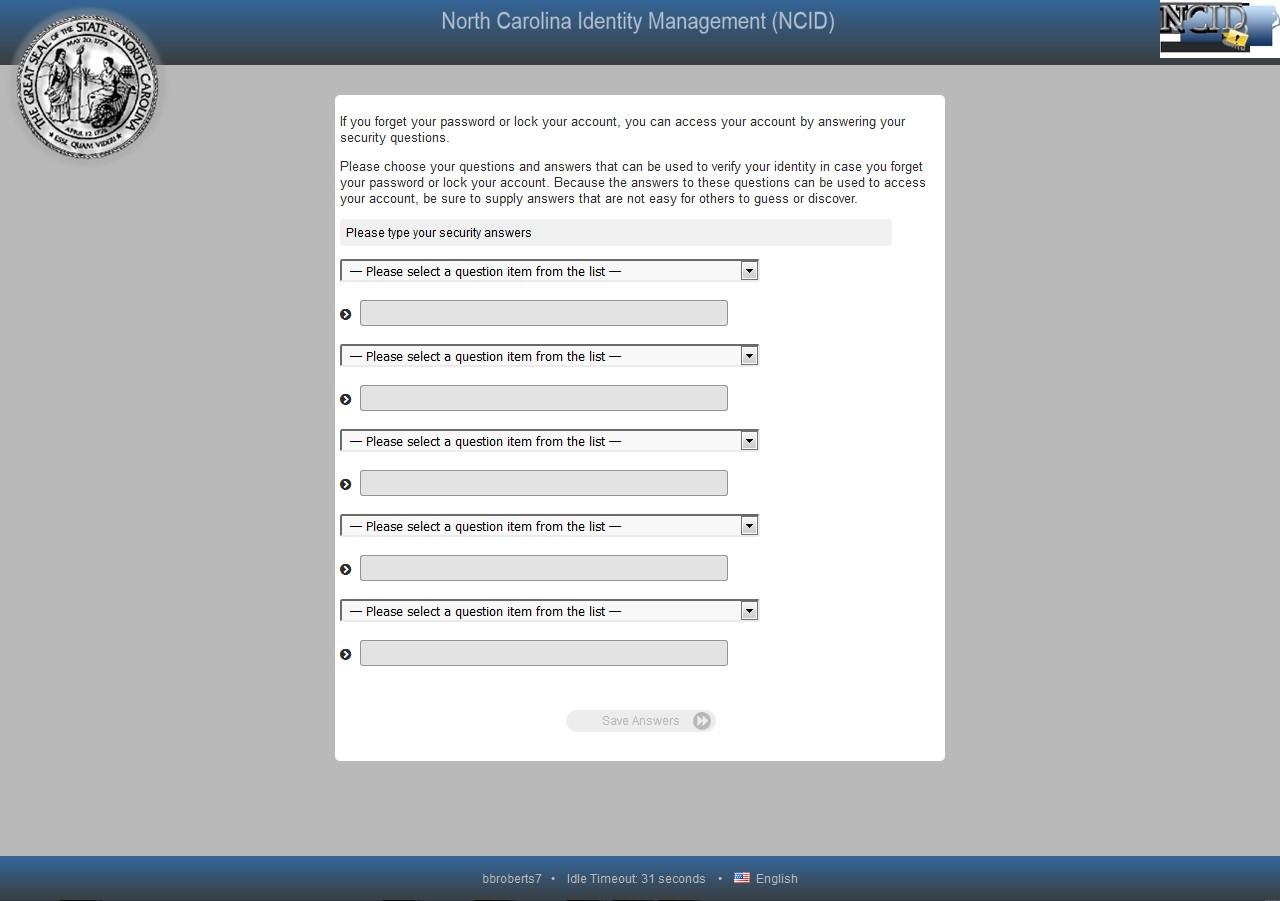
Click on Save Answers once you have completed five answers.
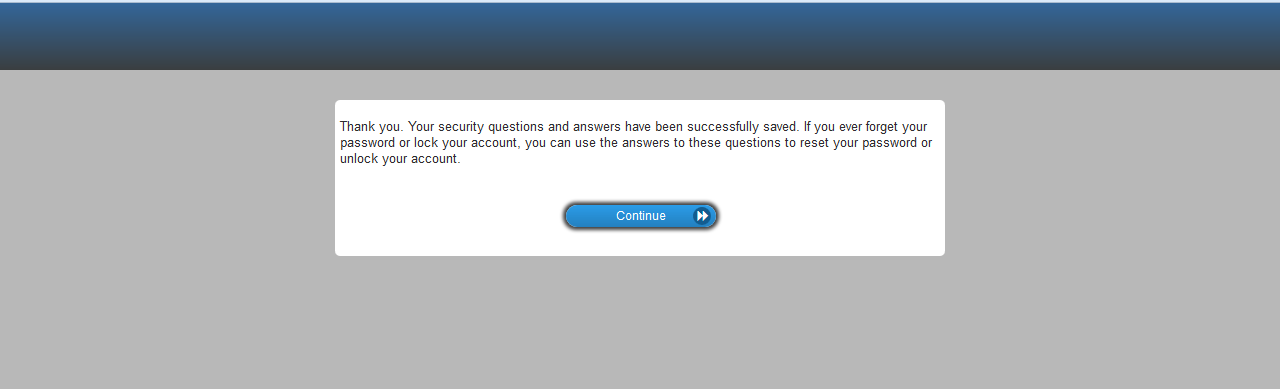
You will see a screen indicating that the security questions and answers have been saved.
Click on Continue
You have now successfully created your NCID account!