
Community Colleges, Universities & Local Governments - Register for NCPA and eProcurement Offerings
How to Register for NCPA and eProcurement Offerings
Community Colleges, Universities, Public Schools, and Local Governments
Employees of state agencies, departments, institutions, community colleges and universities governed by Chapter 143 Article 3 of the North Carolina General Statutes are eligible to participate in NCPA and eProcurement offerings. Also welcome are employees of public schools, charter schools and local, county, city and town governments governed by Article 8, although some subject matter may not apply.
Creating an Account
Follow these instructions only if you do not use the state’s Integrated HR-Payroll System and do not already have an account.
- If you have an account, skip to the next section: Registering for NCPA and eProcurement Offerings.
- If you have an account but cannot access it, contact [email protected] for assistance.
| Instruction | Screenshot |
|---|---|
| 1. Go to the website https://ncgov.csod.com/. | |
| 2. Near the bottom of the login panel, click Create an Account. | 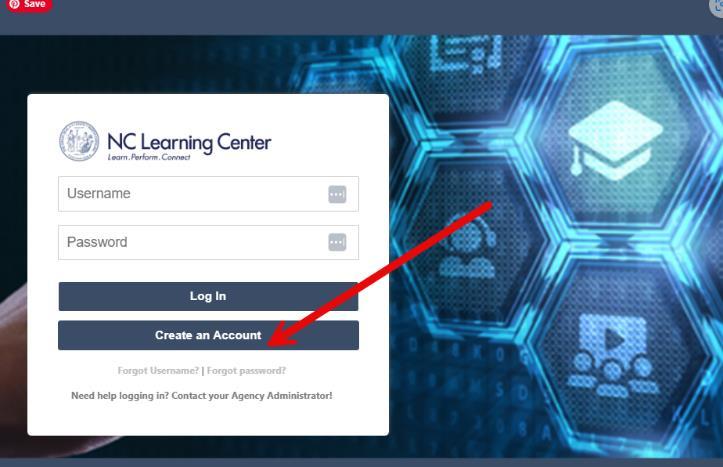
|
| 3. Complete the form following the tips below. | 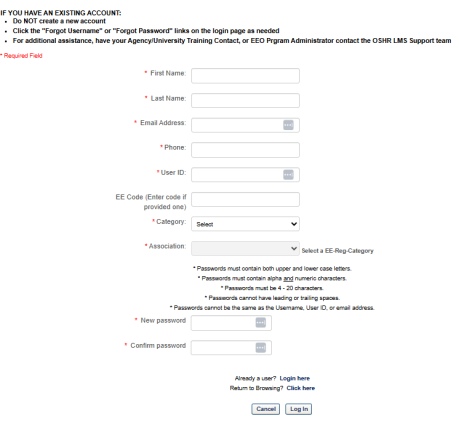
|
| 4. Under Email Address be sure to use your work email address. NCPA and eProcurement offerings are only open to employees of state and local agencies and entities. | 
|
5. Choose the correct Category. If you know what category your organization belongs to, select it from the dropdown menu. If you do not know the category, select your best guess. | 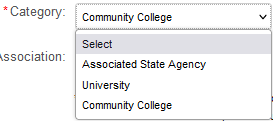
|
6. Select your Association. Select your organization from the options listed. If you do not see your organization, go back to the Category field and try another option. The list of associations is different for each category. If your organization is not listed under any category, use the following settings: Category: Associated State Agency | 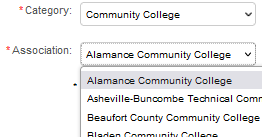
|
| 7. Click the Log In button to submit the form. | 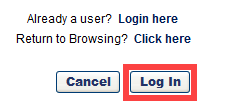
|
| On your next visit to the learning center, go to the NC Learning Center and log in with the User ID and password you entered when you created your account. |
Registering for NCPA and eProcurement Offerings
Follow these instructions if you do not use the state’s Integrated HR-Payroll System.
| Instruction | Screenshot |
|---|---|
| 1. Go to the website https://ncgov.csod.com/. | |
2. Enter the username and password from when you created your account. Note that you can create an account from this link as well. | 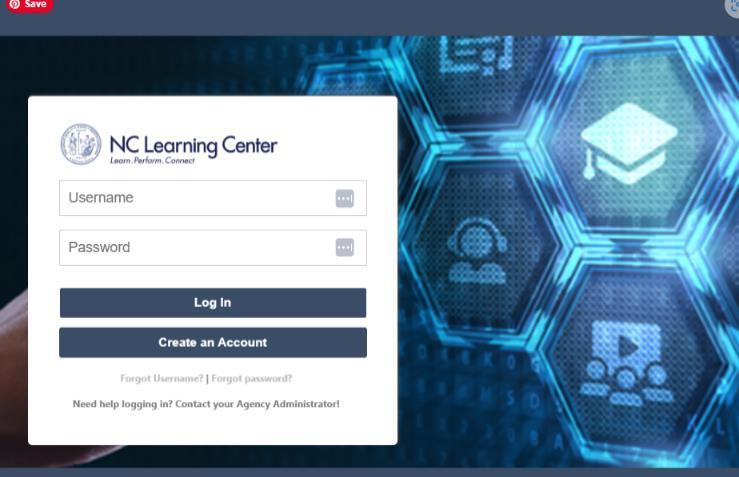
|
3. On the NC Learning Center home page, type a key word in the Search field at the top right of the page. Press Enter on your keyboard. Tips:
| 
|
| 4. Click the title of the offering in the list of search results. | 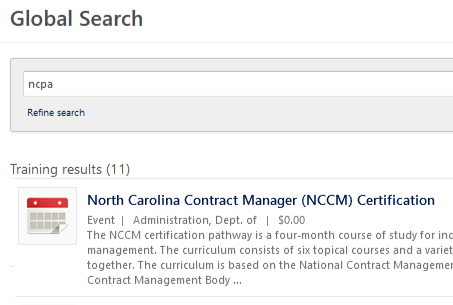
|
| 5. If the offering has multiple sessions, click Select a Session to see available sessions. | 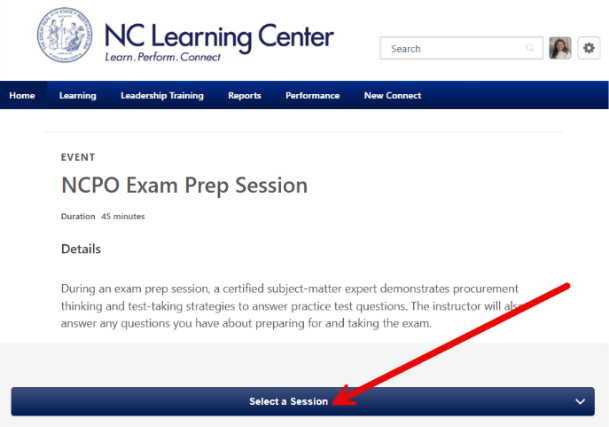
|
6. If a session you want is open, click View Details to see a menu with registration options. Click Request to register for the session. A request will be sent to your supervisor’s NC Learning Center inbox. Click Save for Later if you are not ready to register. If no session is available, click Notify Me to be notified of future offerings. | 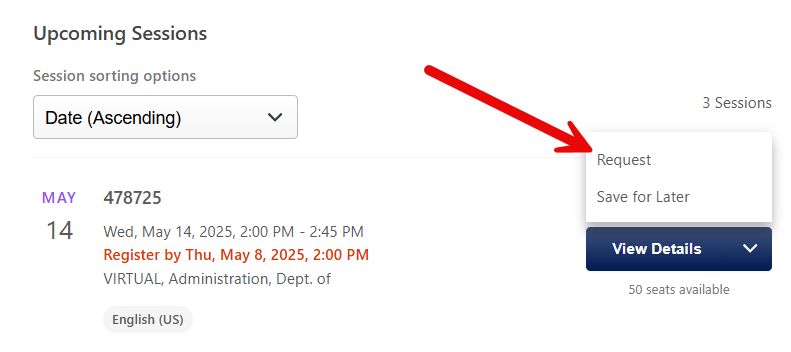
|
| 7. If an offering has a Launch button, you can begin it immediately, without going through the request process. | 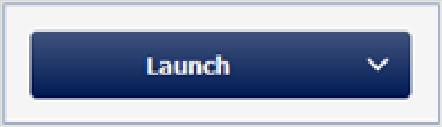
|
Wait for a registration confirmation email from the NC Learning Center. If waiting for your supervisor to approve a request, you may want to remind them that you have a pending request. Important: You are not registered until you receive a registration confirmation. |
Contact the North Carolina Procurement Academy
If you have any questions concerning upcoming offerings or on how to register, please reach out to the North Carolina Procurement Academy at [doa.pc.education@doa.nc.gov].