
State Agencies & Departments - Register for NCPA and eProcurement Offerings
How to Register for NCPA and eProcurement Offerings
State Agencies, Departments, and Institutions
Employees of state agencies, departments, institutions, community colleges and universities governed by Chapter 143 Article 3 of the North Carolina General Statutes are eligible to participate in NCPA and eProcurement offerings. Also welcome are employees of public schools, charter schools and local, county, city and town governments governed by Article 8, although some subject matter may not apply.
If your agency or institution uses the state’s Integrated HR-Payroll System, follow these instructions to register for offerings. Otherwise, see instructions for Community Colleges, Universities, Public Schools, and Local Government located on the NCPA Help Center page.
| Instruction | Screenshot |
|---|---|
| 1. Go to the Integrated HR-Payroll System and click Sign In. | 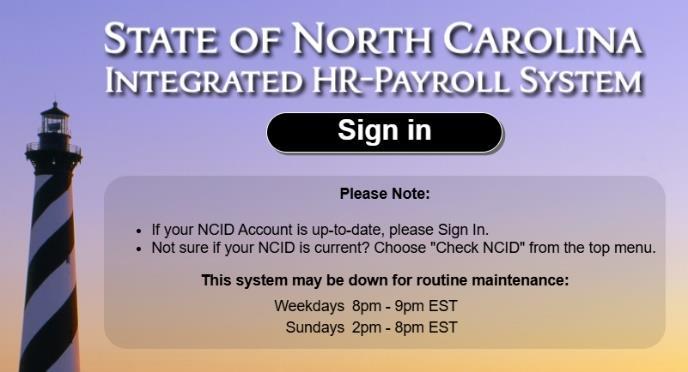
|
| 2. Enter your email address in the field provided. | 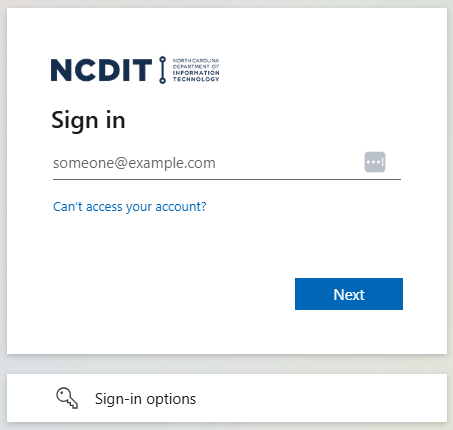
|
| 3. Enter your password in the field provided. | 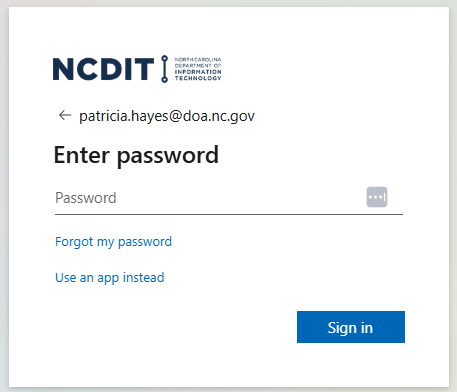
|
4. Approve your sign in request by phone call or on your Microsoft Authenticator App. This screen may look different depending on which authentication method you use. | 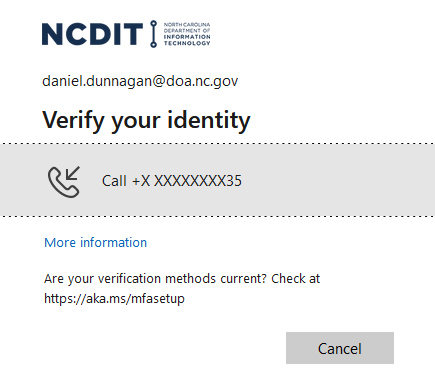
|
| 5. Select the LMS & NCVIP tab. | 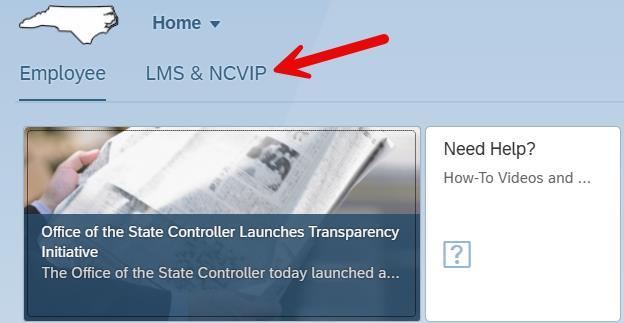
|
| 6. Click the LMS & NCVIP tile. | 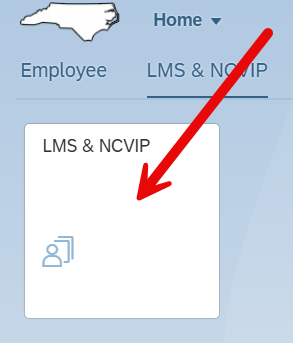
|
| 7. Click Submit. | 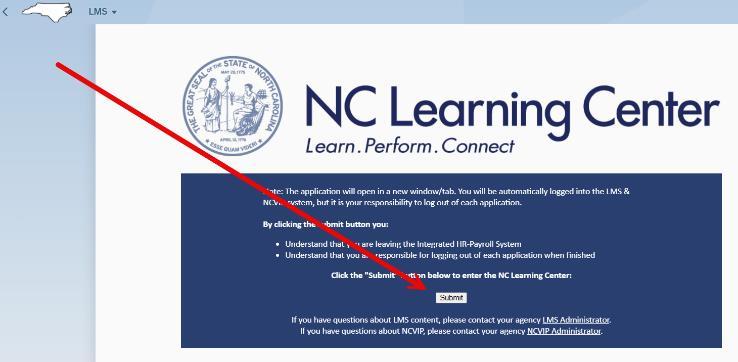
|
8. On the NC Learning Center home page, type a key word in the Search field at the top right of the page. Press Enter on your keyboard. Tips:
| 
|
| 9. Click the title of the offering in the list of search results. | 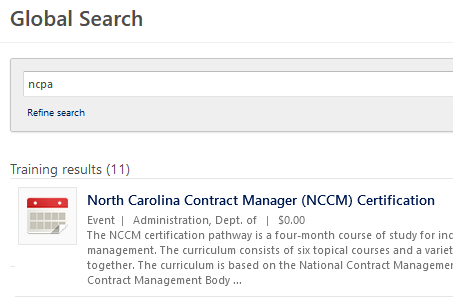
|
| 10. If the offering has multiple sessions, click Select a Session to see available sessions. | 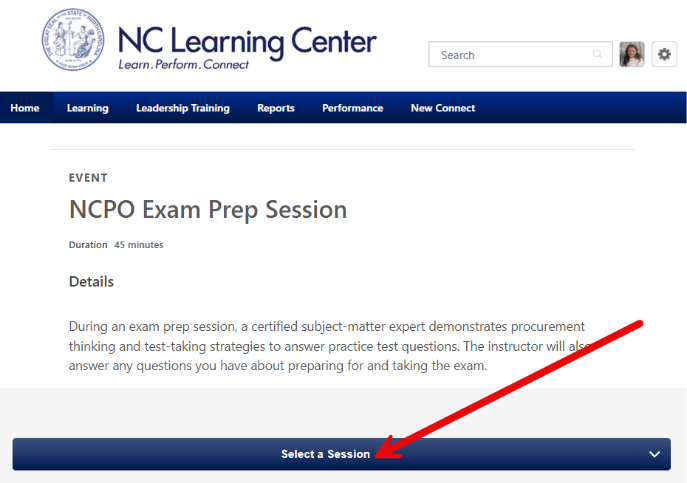
|
11. If a session you want is open, click next to View Details to see a menu with registration options. Click Request to register for the session. A request will be sent to your supervisor’s NC Learning Center inbox. Click Save for Later if you are not ready to register. If no session is available, click Notify Me to be notified of future offerings. | 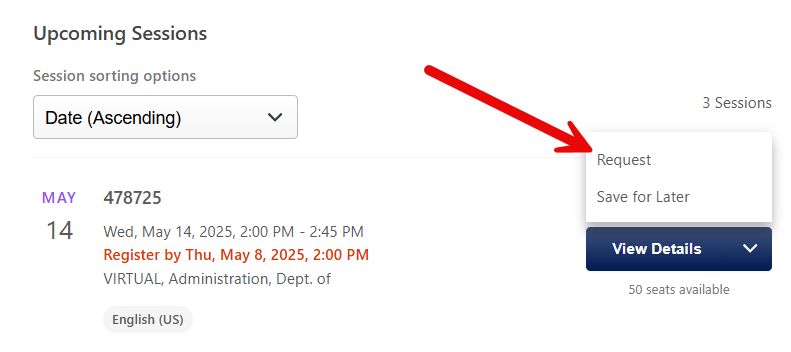
|
| 12. If an offering has a Launch button, you can begin it immediately, without going through the request process. | 
|
Wait for a registration confirmation email from the NC Learning Center. If waiting for your manager to approve a request, you may want to remind them that you have a pending request. Important: You are not registered until you receive a registration confirmation. |
Contact the North Carolina Procurement Academy
If you have any questions concerning upcoming offerings or on how to register, please reach out to the North Carolina Procurement Academy at [doa.pc.education@doa.nc.gov].