
Surplus Public Bid User Guide (PDF)
NORTH CAROLINA DIVISION OF SURPLUS PROPERTY BID USER GUIDE
Updated 09/3/25 (LH)
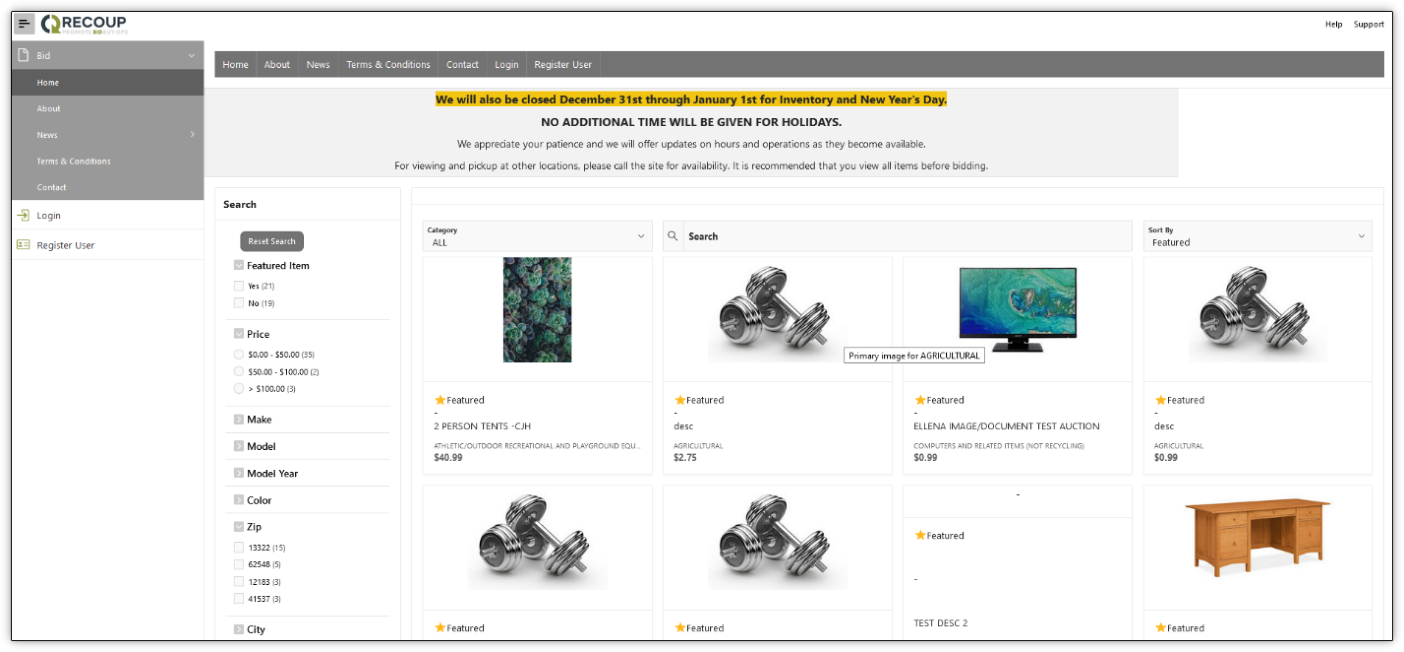
How to Access the Public Bid Site
You can access our public bid site by going to surplus.nc.gov and clicking on Bid for Surplus Property, or
https://recoup.bid.assetworks.com/bid/f?p=2501:4000::::::
You will be able to view available items but will not be able to place a bid unless you are a registered and approved user in the system.
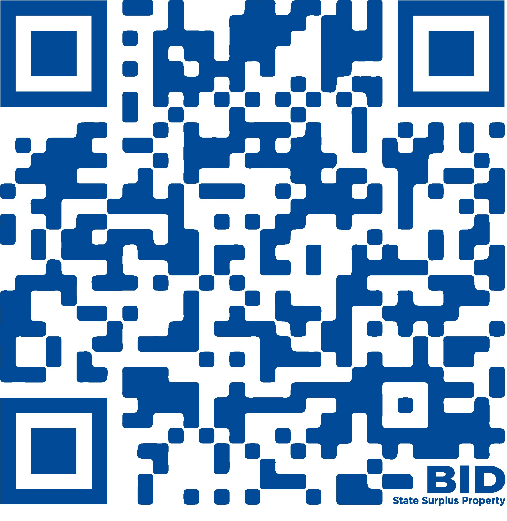
If you are familiar with QR Codes, you can also access the auction site using this one,
How to Register for a User Account
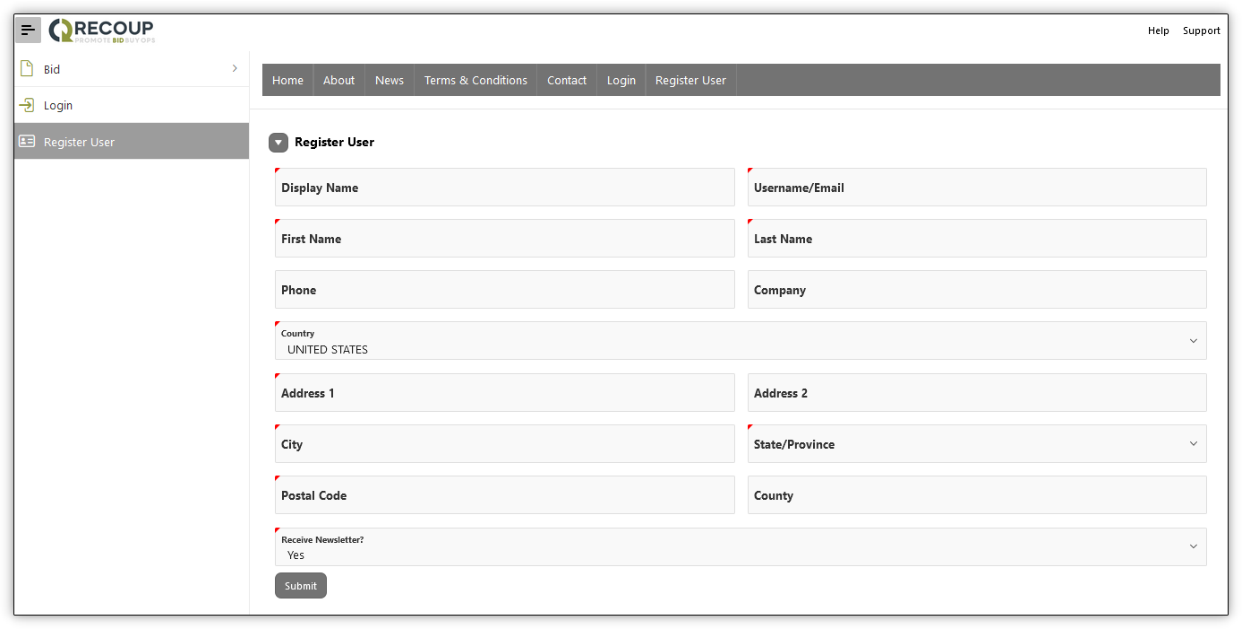
You can register for a user account by going to the public bid site and clicking the Register User menu. You must fill in all required fields and click on the Submit button. You will receive a verification email with a link to validate your email address (check your Spam/Junk folders). Once this is clicked your request will be sent to the North Carolina Division of Surplus Property Administration Staff to review and approve.
*** You may only have one account and it needs to have a residential address. ***
Search Options
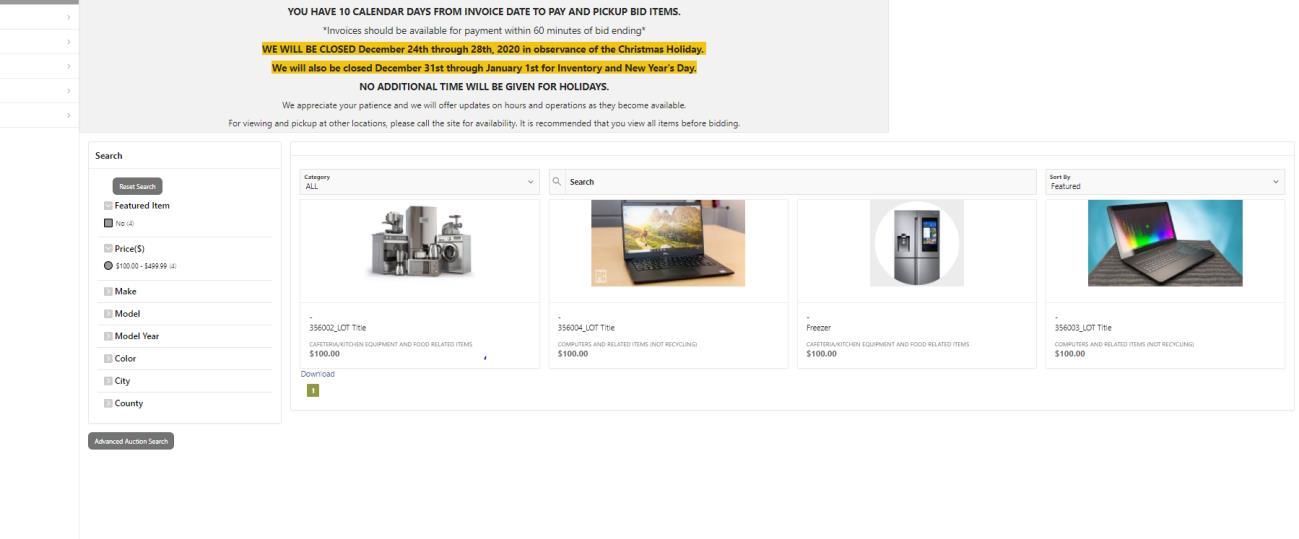
You have the option to search based on the Category, specific Keywords in the Search box, Featured, Newest/Oldest Arrivals, High/Low Price, specific Price ranges, as well as an Advanced Search option which will allow you to view auctions that have already closed. To use the Advanced Search, you must be an approved user and be logged in to your account.
Bid Detail
To view the details of a specific item, click on the item. The right side of the screen contains the main description, start & end date/time, and current bidder.
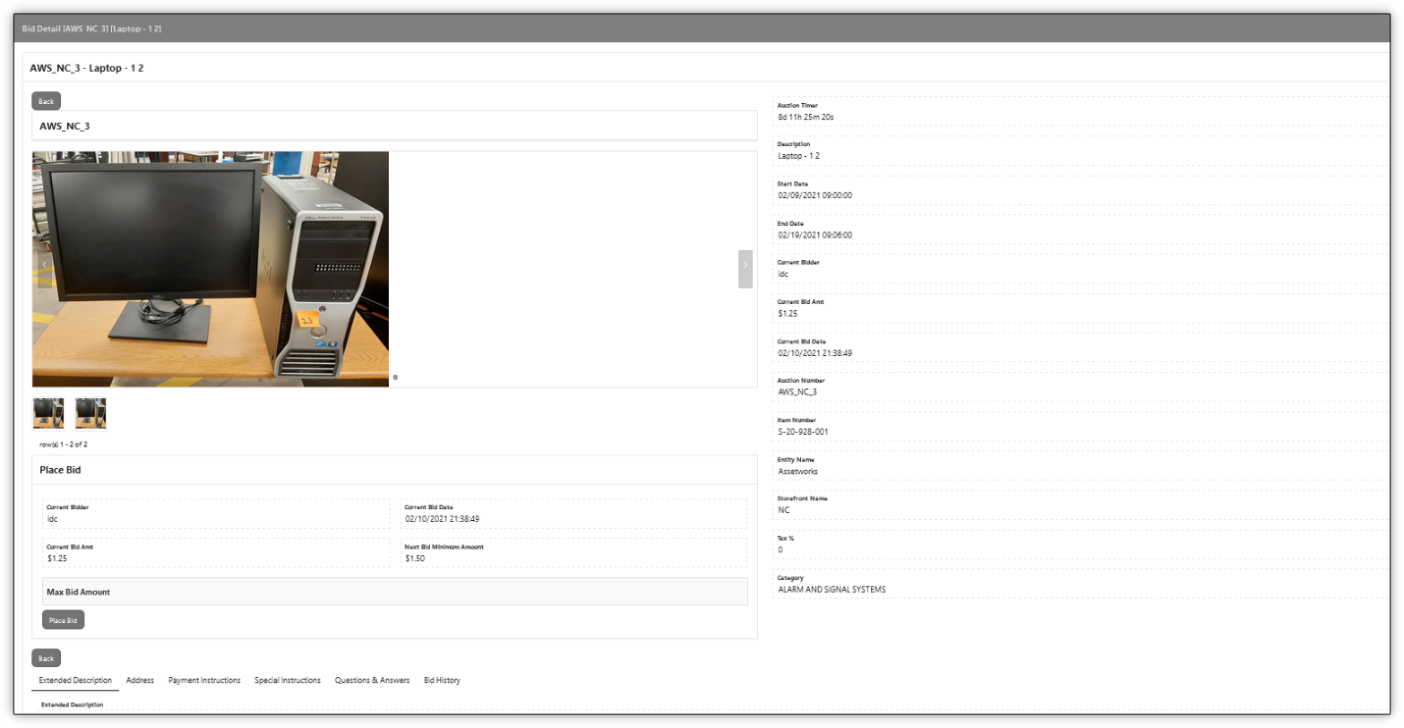
Place Bid
You must be a registered user and logged into the Bid application to place an item on bid.
Additional Information
The bottom of the screen includes addition information under each the following tabs.

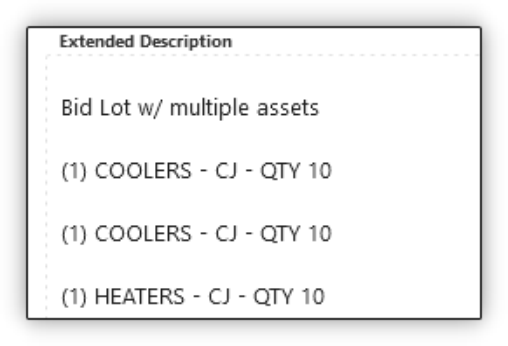
Extended Description
Displays a detailed description for this auction.
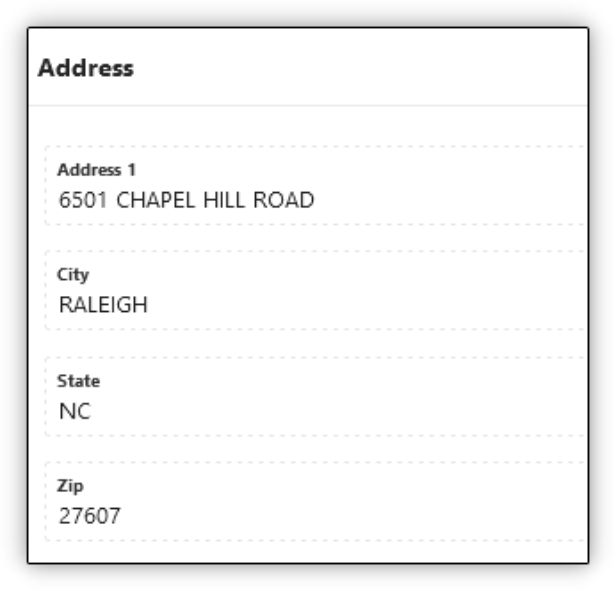
Address
Displays the address where this auction is located.
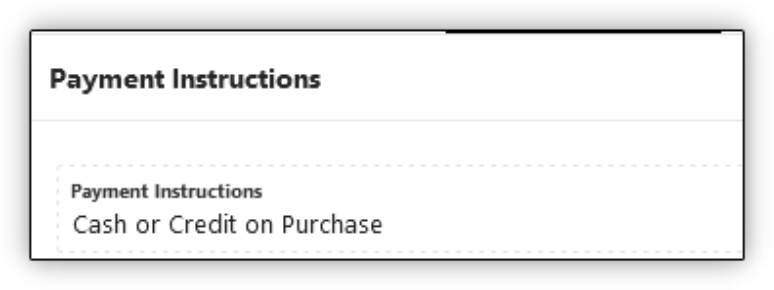
Payment Instructions
Displays specific payment information for this auction.
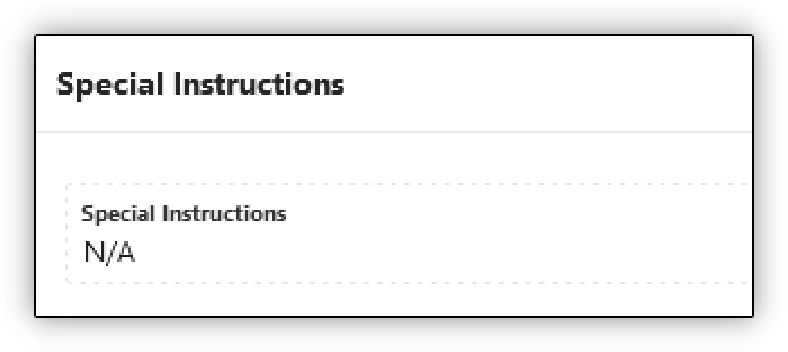
Special Instructions
Displays any special instructions for this auction.
Documents
Displays and allows a user to download any files for this auction. This does not include image files.

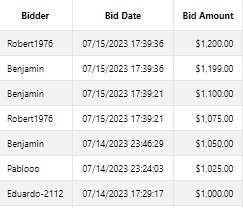
Bid History
Displays the bid history for all bids placed on the auction – the display name, date/time of bid, and amount.
How to place a Bid
You must be a registered user and logged into the Bid application to place an item on bid. First, click on the auction in which you are interested in placing a bid.
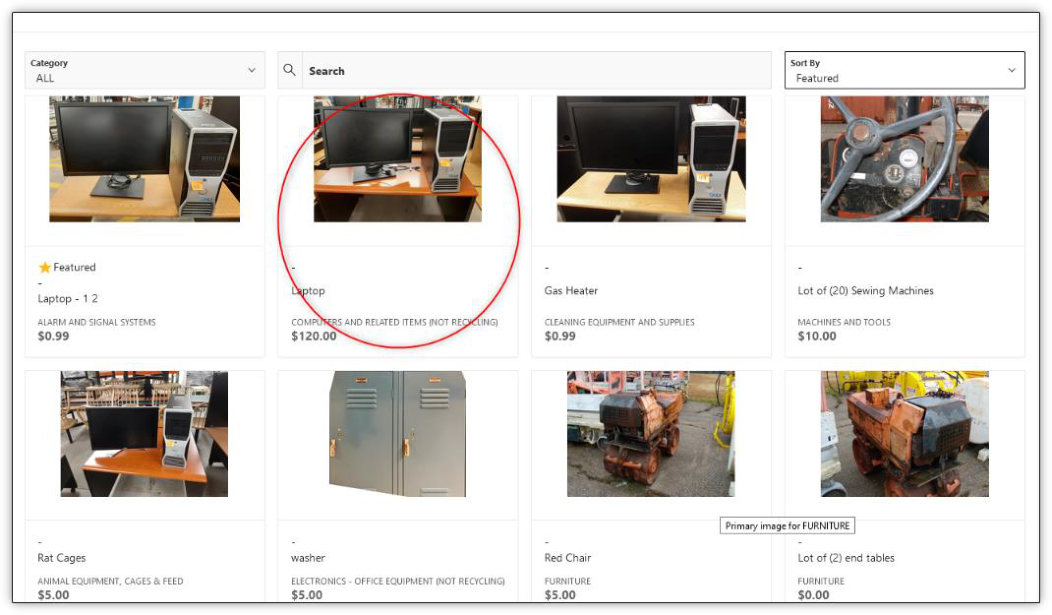
This will take you to the bid detail screen within the Bid site.
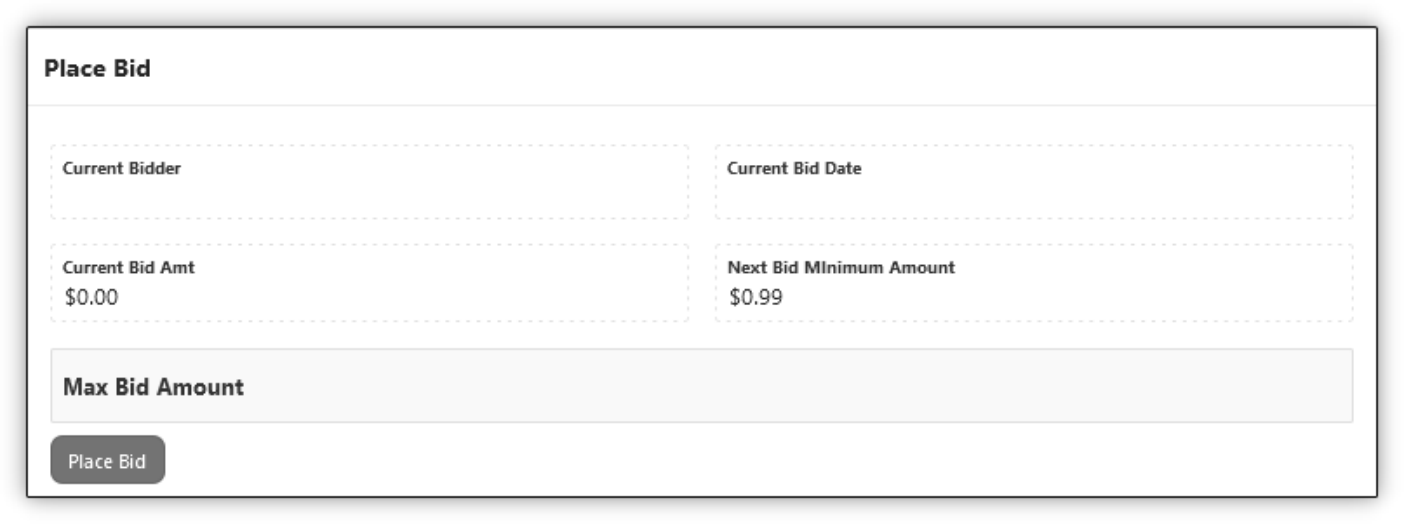
In the Place Bid section, enter your Max Bid Amount and click on the Place Bid button.
This will produce a bid confirmation page to confirm the bid amount.
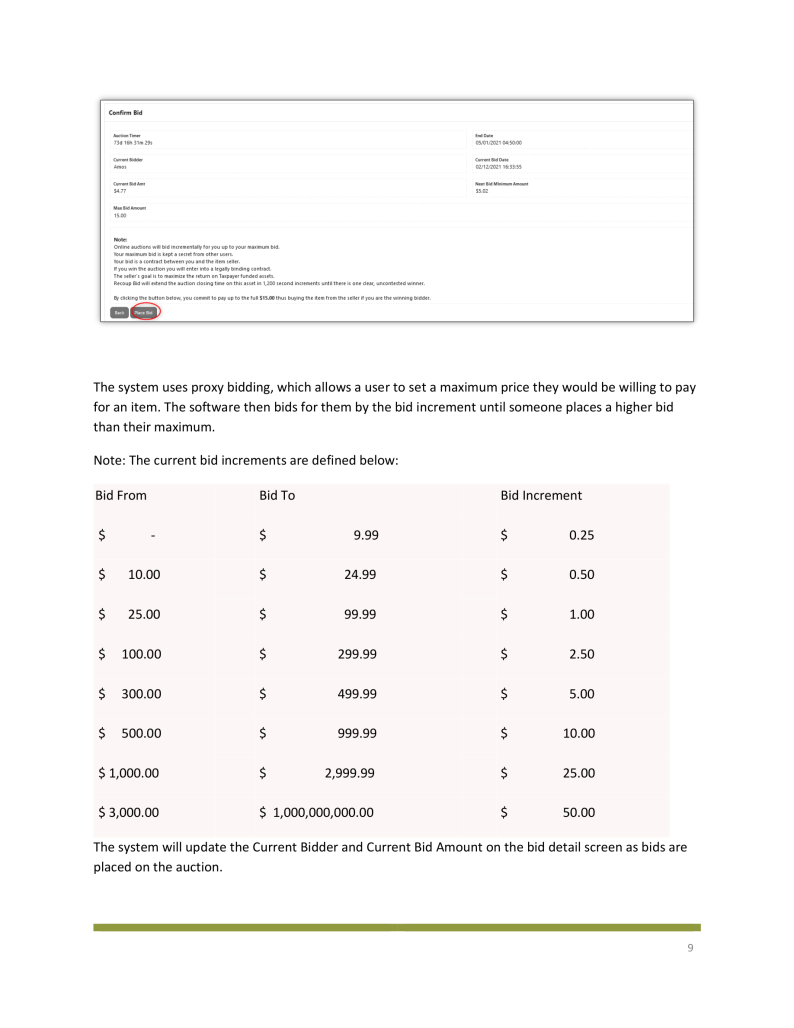
The system uses proxy bidding, which allows a user to set a maximum price they would be willing to pay for an item. The software then bids for them by the bid increment until someone places a higher bid than their maximum.
| Bid From | Bid To | Bid Increment |
|---|---|---|
| $ - | $ 9.99 | $ 0.25 |
| $ 10.00 | $ 24.99 | $ 0.50 |
| $ 25.00 | $ 99.99 | $ 1.00 |
| $ 100.00 | $ 299.99 | $ 2.50 |
| $ 300.00 | $ 499.99 | $ 5.00 |
| $ 500.00 | $ 999.99 | $ 10.00 |
| $ 1,000.00 | $ 2,999.99 | $ 25.00 |
| $ 3,000.00 | $ 1,000,000,000.00 | $ 50.00 |
The system will update the Current Bidder and Current Bid Amount on the bid detail screen as bids are placed on the auction.
Placing a Bid: Additional Information
The Bid Detail page will display information regarding the auction associated with the bid, along the Current Bid Amount and the Next Bid Minimum Amount. To successfully outbid another user, enter a Max Bid Amount and click Place Bid.
The value entered in the Max Bid Amount field must be equal to or greater than the value displayed in the Next Minimum Bid Amount field. Once you have entered your Max Bid Amount and a bid has been placed, a notification will display in the top-right corner of the screen. Upon a successful bid, you will be notified that you are currently the highest bidder or that your bid was successful, but you have been outbid by an existing proxy bid.
If you are the new highest bidder, then no further action is required until you have been outbid. If you receive a notification that you have been outbid by an existing proxy bid, this means that another user has entered a dollar value in the Max Bid Amount field that is higher than your Current Bid Amt.
If you have been outbid and wish to continue pursuing an item, you may enter a higher value in the Max Bid Amount field.
***If any bidder bids within the last two minutes of an auction, the auction will be extended for two minutes. Keep an eye on the End Date/Time***
My Dashboard
You must be a registered user and logged into the Bid application to view the My Dashboard menu.
Profile
The Profile screen is where all information regarding a user account is maintained. Click on My Account and the Profile region contains basic user information, followed by various regions with more details about the account, as well as Auction and Bid activity.
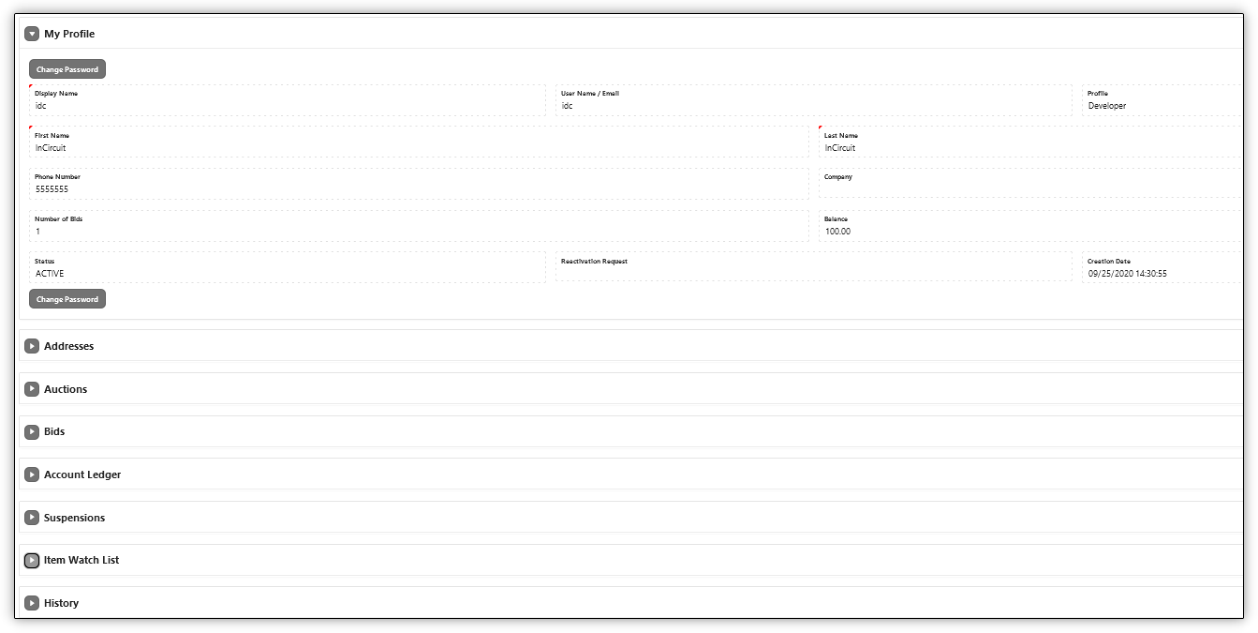
Changing a Password
Upon navigating to the Profile menu click the Change Password button.
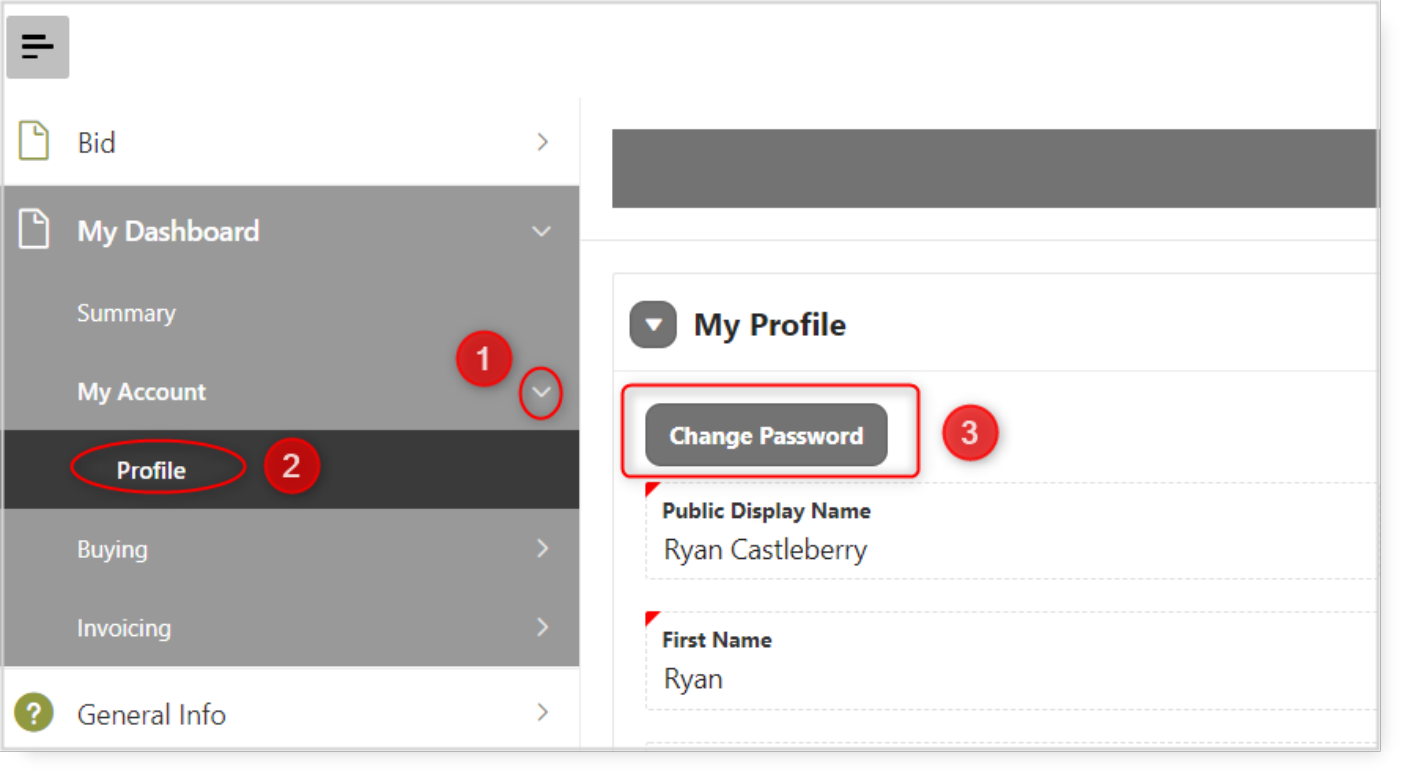
This will direct you to the Change Password screen. To change your password, enter the New Password, Confirm, and click Save.
Your Bids
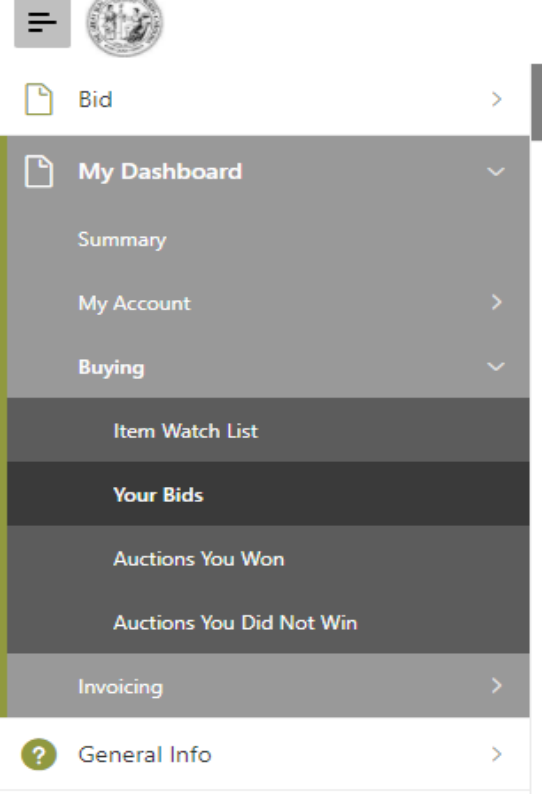
Under Buying, click on Your Bids. This shows the buyer a running list of every bid they have ever made. This may show the same Auction and/or Item numbers of multiple times.

Auction You Won
This shows a list of all auctions the buyer has won.
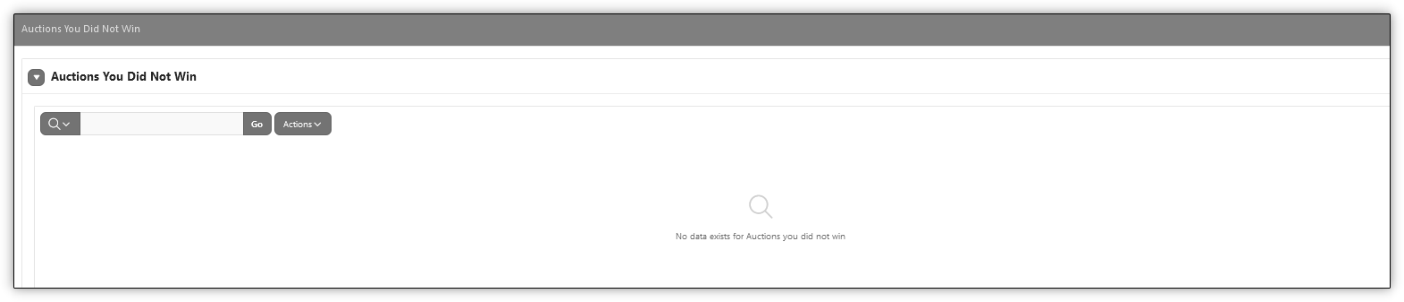
Auction You Did Not Win
This shows a list of all auctions the buyer bid on but did not win.
Invoicing
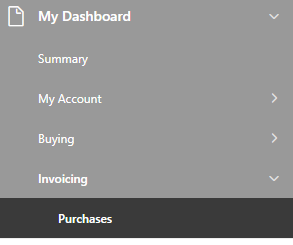
There are several sub menus under the main Invoicing menu.
Purchases
Purchases can be accessed by navigating to Invoicing > Purchases. This is a list of all auctions successfully won by the buyer logged in. Clicking on the Invoice Number will display the Invoice Detail menu. This menu is where buyers can make payments on invoices. Payments on an invoice will display in the Invoice Payments section.
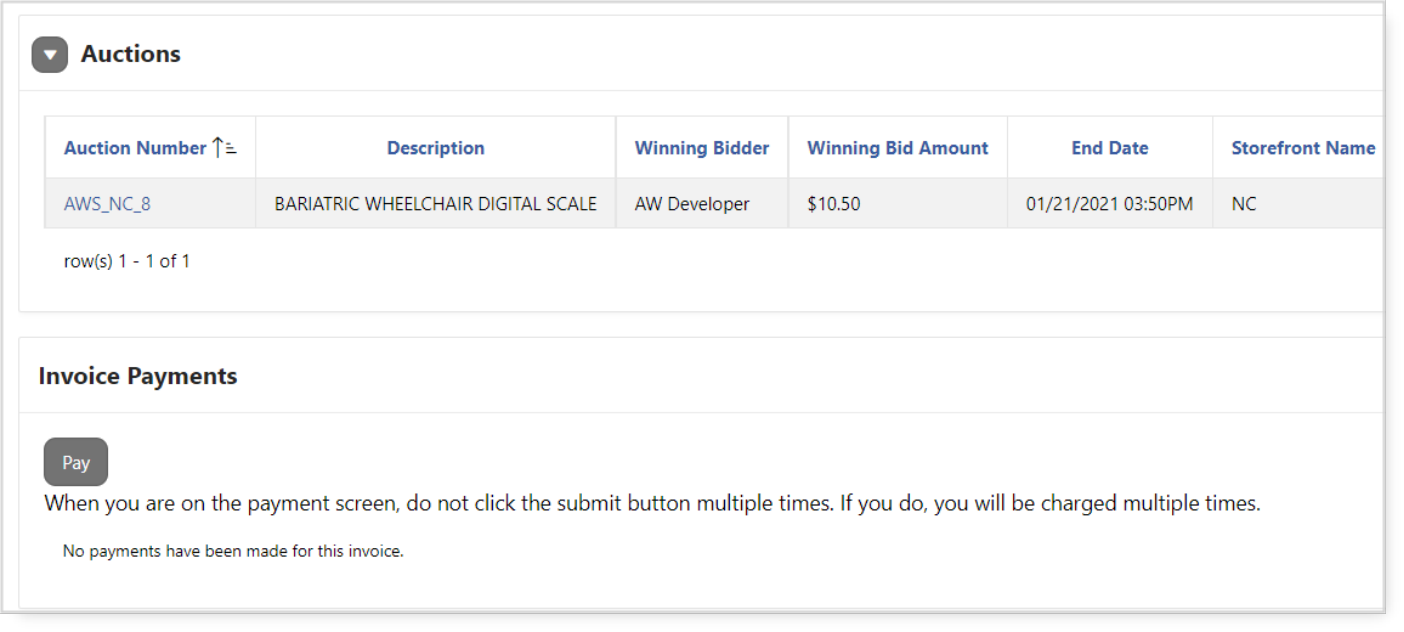
Items must be paid and picked up by 4:30pm on the 10th calendar day from the auction award date.